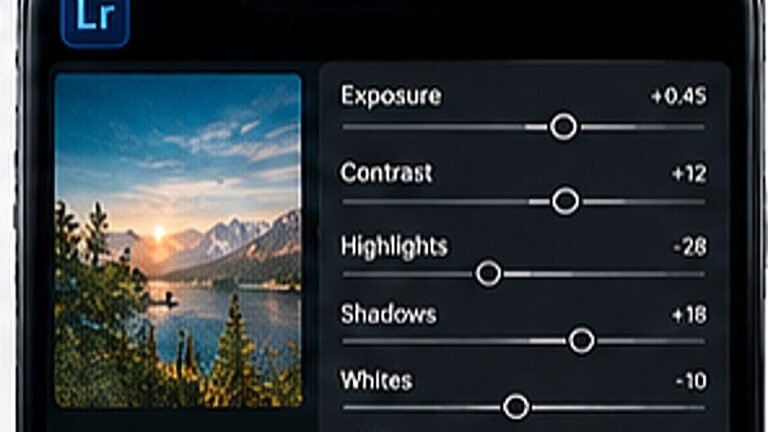
How to Install Lightroom Presets on Mobile
Import a DNG preset once and reuse it on every photo, the exact taps, in order.
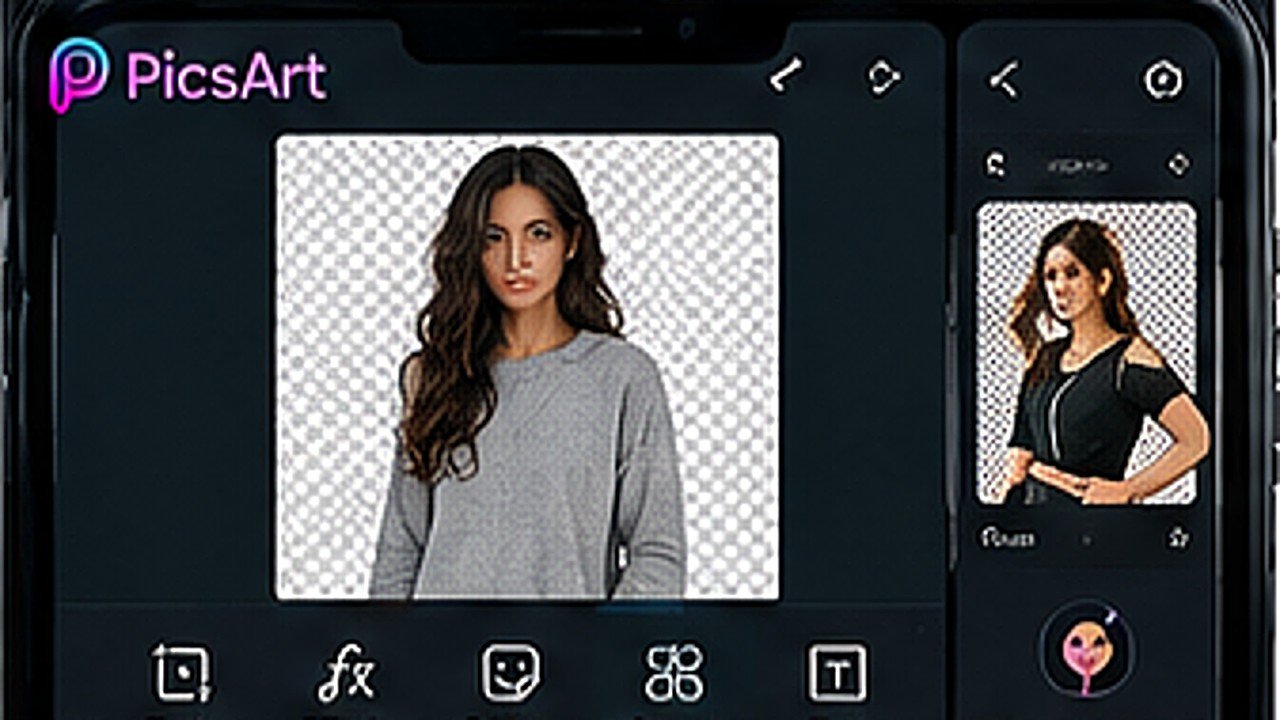
Cutouts succeed or fail before you open the app. Even lighting and a clear gap between subject and background do more than any tool. Avoid busy backgrounds behind hair.
Open your photo, tap Tools, then Cutout, and choose Person or Object. PicsArt makes a first pass automatically, it will be roughly right and wrong at the edges.
Switch to the erase and restore brushes and drop the brush size right down. Work zoomed in, and follow the shape of hair rather than trying to trace every strand.
Export as PNG, not JPG. JPG has no transparency and will fill your cutout with white, the single most common mistake here.
Tip. Save both the PNG cutout and the finished composition. You will reuse the cutout more than you expect.
Add your cutout over a new photo or one of our PNG background elements, then match the two: brightness, warmth and a small shadow under the subject. Matching light is what makes it believable.
Import a DNG preset once and reuse it on every photo, the exact taps, in order.
Split toning, curves and a little grain, the recipe behind the teal-and-orange look.
A repeatable five-step routine that keeps a feed looking like one person made it.